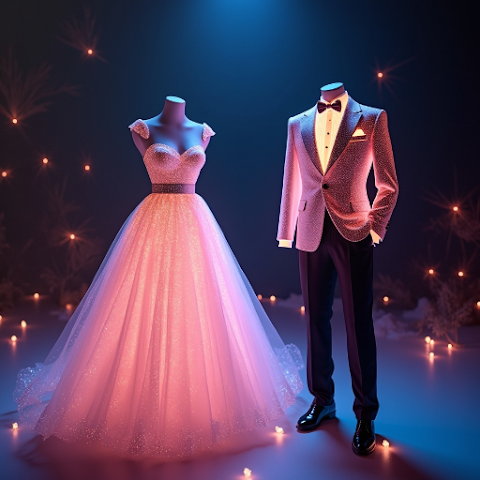
How to Change Outfits in a Photo Using AI (No Photoshop)
Swap clothes in any photo using AI without ever opening Photoshop. A step-by-step mobile walkthrough for fast, clean outfit changes.
How to Change Outfits in a Photo Using AI (No Photoshop)
Photoshop used to be the only way to change what someone is wearing in a photo. You needed layers, masks, a graphics tablet, and patience. In 2026, you don't need any of that. A phone, a clear picture, and an AI outfit swap app can replace a clothing item in a photo in under a minute, and the result often looks better than a rushed manual edit. This guide walks you through exactly how to change outfits in a photo using AI, without ever opening Photoshop or learning a single keyboard shortcut.
Why People Are Skipping Photoshop for Outfit Changes
Photoshop is powerful, but it is overkill for a single task like swapping a shirt. The learning curve is steep, the subscription is expensive, and a clean clothing edit still takes 20-40 minutes even for intermediate users. AI outfit changers compress that work into three taps. You pick a photo, pick a new outfit, and the model does the segmentation, lighting, and fabric fitting for you.
If you are new to this category, our what is an AI clothes changer explainer covers the basics, and virtual try-on technology explained shows the engineering underneath.
What You Need Before You Start
- A clear, well-lit photo of the person whose outfit you want to change.
- A reference outfit - either a product photo from a store or a preset inside the app.
- A phone with at least 1 GB of free storage.
- Five free minutes.
That's the whole kit. No desktop, no stylus, no Creative Cloud login.
Step 1: Pick the Right Source Photo
The photo matters more than the app. A model trained on millions of fashion images can still only work with what you give it. Use a full-body or half-body shot with even lighting and a simple background. Avoid heavy shadows across the torso, extreme angles, or photos where arms cross the chest. For a deeper guide on photo choice, see how to try on clothes virtually.
Step 2: Choose a New Outfit
You have two options. You can upload a product photo - a flat-lay, a catalog image, or even a screenshot from an online store. Or you can pick from a preset wardrobe inside the app. Presets are faster and usually produce cleaner results because the lighting is pre-tuned. Uploads give you more creative range. If you want to know when to use each, read AI outfit generator vs AI outfit swap.
Step 3: Let the AI Do the Swap
This is where Photoshop users usually wince. Instead of masking, feathering, and color-matching for half an hour, you tap Generate. The app segments the original clothing, replaces it, re-renders lighting, and preserves the person's pose and skin tone. A typical swap finishes in 20-45 seconds on a 2023-or-newer phone.
Step 4: Review and Regenerate If Needed
The first result is usually good. Sometimes it isn't. A pattern might bleed into skin, or a sleeve might look off. The fix is not to open a desktop editor - it is to tap Regenerate or try a slightly different source photo. Two or three attempts almost always land a clean version. Our honest accuracy assessment sets realistic expectations.
Step 5: Save, Share, or Shop
Once you like the result, save it to your camera roll, share it to a friend for a second opinion, or use it as a pre-purchase check before you hit Buy on an online store. The whole workflow, from opening the app to sharing, takes less time than making tea.
Common Mistakes That Make AI Swaps Look Bad
- Using a blurry or low-resolution photo.
- Picking a reference with dramatically different lighting.
- Choosing a garment that doesn't match the pose (e.g. a fitted dress on a sitting photo).
- Skipping the regenerate step when the first pass is 80 percent right.
- Comparing AI results to studio photography instead of everyday selfies.
Is AI outfit swap really better than Photoshop for beginners?
For single-clothing swaps, yes. Photoshop is still the better tool for compositing, color grading, and poster design. But if your only goal is to change what someone is wearing, AI finishes in seconds what takes hours manually. See AI outfit swap vs Photoshop for a side-by-side breakdown.
Do I need to pay to change outfits with AI?
No. AI Outfit Swap is free on Android and iOS with daily generations included. Paid tiers exist in some apps for bulk use, but hobby-level editing is free. Free virtual try-on apps covers the landscape.
Can AI swap outfits on group photos?
Some apps support this, but single-person photos are far more reliable right now. For group shots, crop one person at a time and re-composite if needed.
Will the AI keep my face intact?
Yes. Good outfit swap apps only modify clothing pixels. Face, hair, hands, and background are preserved. For privacy specifics read the AI Outfit Swap privacy guide.
What phones work best?
Anything from the last three years. iPhone 12 and newer, and any mid-range Android with 4 GB of RAM or more, handle generations comfortably.
Try AI Outfit Swap Free on Android or iOS
AI Outfit Swap is a free mobile app for Android and iOS that does everything described above right from your phone. No desktop, no subscription wall, and no fiddling with layers. Install it, upload a photo, pick an outfit, and see the result in under a minute.
- Download on Google Play
- Download on the App Store
- Or visit our download page for both links in one place.
If you want to compare it to other tools before installing, read our best AI outfit swap apps for 2026 roundup, then head to the download page when you are ready.
Written By